For technical assistance, contact the ITS Helpdesk:
- Email: technicalsupport@gulfcoast.edu
- Phone: 850.913.3303
- Hours: Monday-Friday, 7:00 a.m.-12:00 a.m. CST
How to Access Respondus Lockdown Browser
Updated: 6/25/2026
Respondus LockDown Browser is a custom security browser that secures your testing environment during online exams in Canvas. If your instructor has enabled LockDown Browser for an exam, you must use it to access and complete that assessment.
LockDown Browser is compatible with Windows and Mac computers and iPads (iOS 12.0+ or later). Chromebook users should review the system requirements on the Respondus Resource page before their exam. Smartphones are not supported.
Getting Started
Already have LockDown Browser installed?
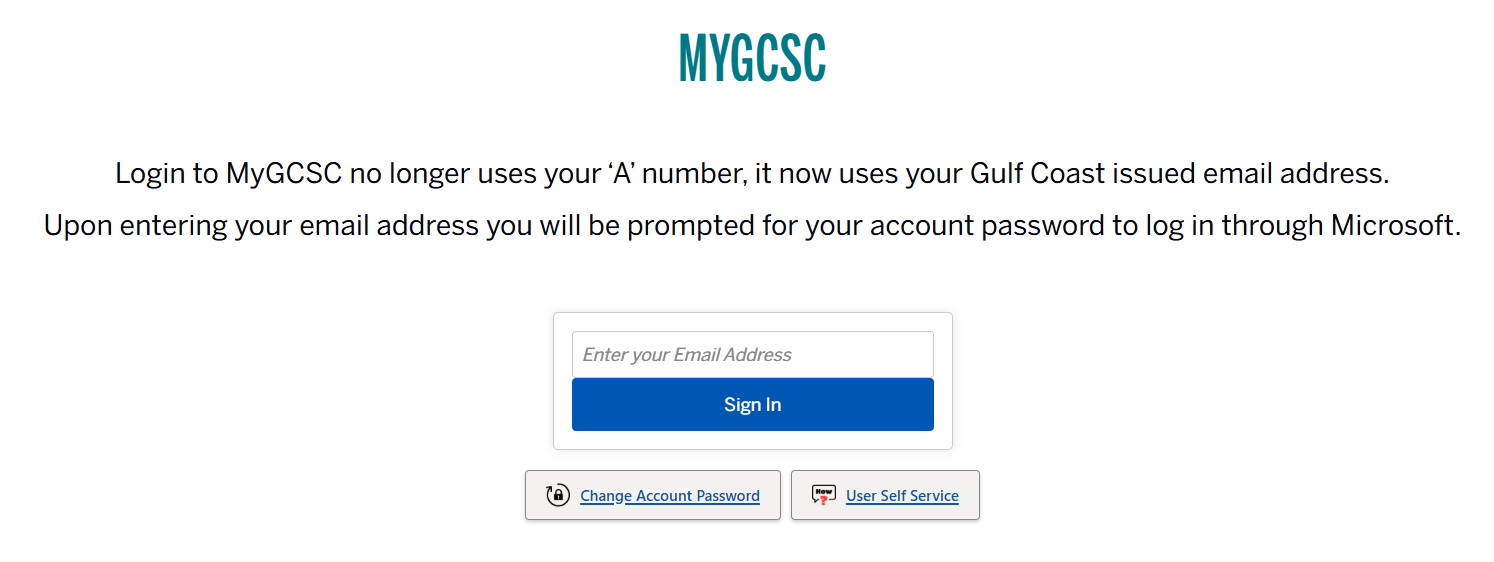
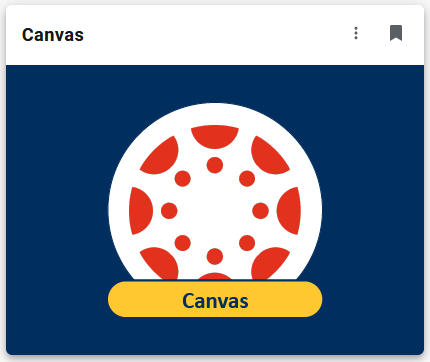
Sign out of Canvas in your regular browser, open LockDown Browser, and sign in using your student email address and myGCSC password. Select the Canvas tile to access your courses, then navigate to your exam and begin.
Need to install LockDown Browser?
When you attempt to access an exam that requires LockDown Browser in Canvas, you will see a prompt on your screen with a download link.
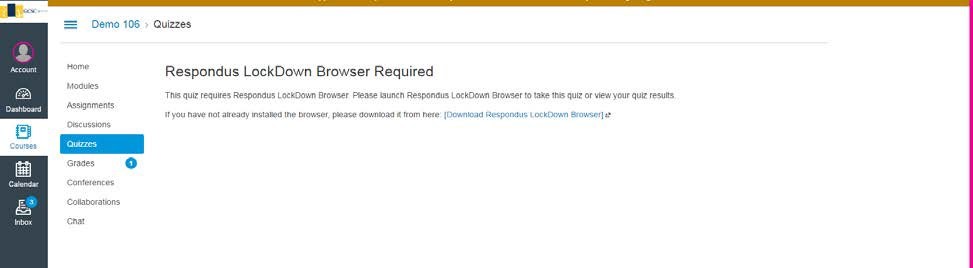
You can also use the link below to go directly to the download page.
Download Respondus LockDown Browser
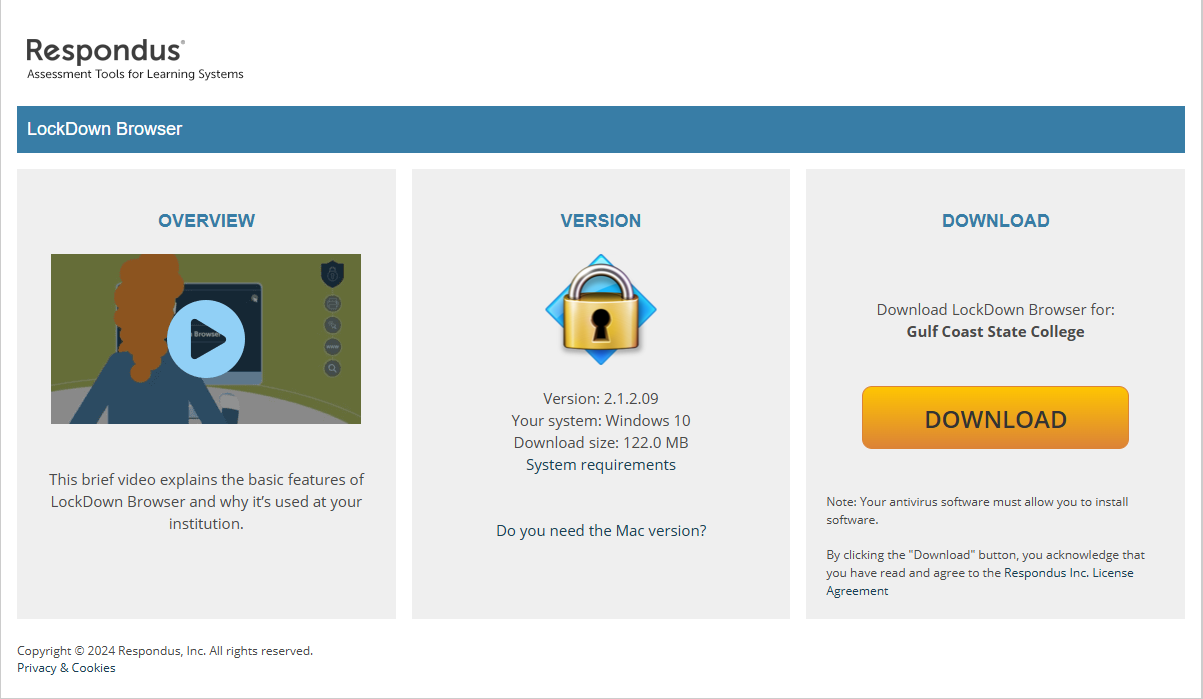
The download page will automatically detect whether you need the Windows or Mac version. If it does not detect your system correctly, a link to the other version is available on the page. Select "Install Now" and follow the on-screen instructions to complete the installation.
Video Tutorial
Watch the video below for a complete walkthrough of downloading, installing, and taking an exam with LockDown Browser, including guidance on the second camera feature.
LockDown Browser restricts your computer to the exam environment for the duration of your text. While the browser is active:
- You cannot open new tabs or browser windows
- You cannot access other applications or programs
- You cannot print, copy, or share screen content
- Certain keyboard shortcuts and browser menu options are disabled
Important:
Once you have started an exam in LockDown Browser, you cannot exit the browser until the quiz has been submitted for grading.Some instructors use Respondus Monitor alongside LockDown Browser. Monitor uses your webcam to record you during the exam, verify your identity, and confirm that no unauthorized materials are visible in your testing environment.
If Monitor is required, you will be guided through a pre-exam sequence that includes:
- Showing your student ID to the webcam
- Performing an environment check by showing your surroundings
- Showing the perimeter of your monitor using a handheld mirror or front-facing camera on your phone, if requested
- Being recorded throughout the entire exam session
Mobile Device Policy:
If you use your mobile device (instead of a mirror) to show your laptop's perimeter during the environment check, you must completely remove the device from reach before proceeding. Mobile devices must remain inaccessible for the entire testing period unless your instructor explicitly states otherwise.Monitor recordings are accessible only to your instructor and authorized personnel. If you have questions about the recording process, contact your instructor before exam day.
To avoid issues on exam day, complete the following before your scheduled exam time:
- Install LockDown Browser and open it at least once to confirm it launches correctly
- Complete any available practice quizzes that use LockDown Browser
- Ensure your device is fully charged or plugged in
- Confirm you have a reliable internet connection
- Find a quiet, well-lit location where you will not be interrupted
- If Monito is required: test your webcam and microphone, and have your photo ID ready
When you are ready to begin:
- Close all programs before launching LockDown Browser. You may keep open programs required for internet connectivity and any assistive technology you use.
- If LockDown Browser notifies you that a blocked program is running, choose Yes to close it, or exit LockDown Browser, close the program manually, and relaunch.
- Clear your workspace of any materials not permitted for the exam
- Turn off or place out of reach any additional devices such as phones, tablets, or second computers.
- Close all non-essential programs on your computer.
- Launch LockDown Browser. Windows: double-click the LockDown Browser shortcut on your desktop. Mac: open LockDown Browser from your Applications folder.
- Sign in using your student email address and myGCSC password.
- Select the Canvas tile to access Canvas
- Navigate to your course and open your exam.
- If Respondus Monitor is required, complete the pre-exam sequence when prompted.
- Begin your exam. Remain at your computer for the entire duration.
Webcam tips if Monitor is required:
- Place your device on a firm surface such as a desk or table; not on your lap or in a bed
- Sit in a well-lit room and avoid backlighting such as a window behind you
- Ensure your face is clearly visible; avoid hats with brims
- Do not tilt your screen after completing webcam setup
If you experience technical issues during your exam, notify your instructor as soon as possible.
For self-service troubleshooting, visit the Respondus Student Support Knowledge Base. If you are unable to resolve the issue, contact the ITS Helpdesk:
- Email: technicalsupport@gulfcoast.edu
- Phone: 850-913-3303
- Hours: Monday-Friday, 7:00 a.m.-12:00 a.m. CST
For best results, schedule your exam during regular Helpdesk hours so support is available if needed.
What if my internet connection drops during an exam?
LockDown Browser will maintain your progress and attempt to reconnect. If reconnection is not possible, contact your instructor immediately.
Do I need to uninstall my regular browser before using LockDown Browser?
No. LockDown Browser operates independently of any other browsers you have installed.
Will LockDown Browser work with screen readers or other accessibility tools?
Yes. LockDown Browser supports various accessibility features. For additional support, contact the Student Accessibility Resource (SAR) Center at sar@gulfcoast.edu or 850-747-3243.
Can I use a campus computer to take my exam?
Yes. Compters in the campus library have LockDown Browser installed and are available if you do not have access to a compatible personal device.
What happens if I get flagged by Respondus Monitor?
Being flagged does not automatically mean you have violated exam rules. Your instructor reviews all recordings and flags before making any determination.
What if I have a privacy concern about Respondus Monitor?
Monitor recordings are accessible only to your instructor and unauthorized personnel. If you have specific concerns, discuss them with your instructor before your exam.