technicalsupport@gulfcoast.edu
850.913.3303
Add Backup Options for Microsoft Multi-Factor Authentication
Updated 2/26/2025
Visit https://mysignins.microsoft.com/security-info
Login using your @my.gulfcoast.edu email address and password
Enter your response to “Stay signed in?” Recommended: If you are on a shared computer select “No”.
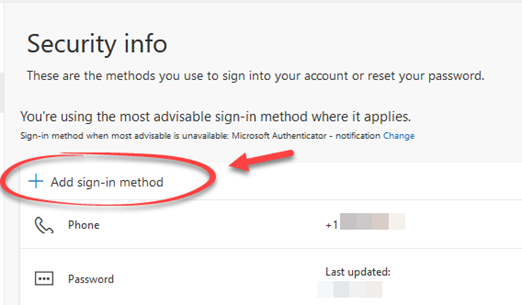
Select + Add sign-in method
Choose the Additional MFA option you want to add to your account
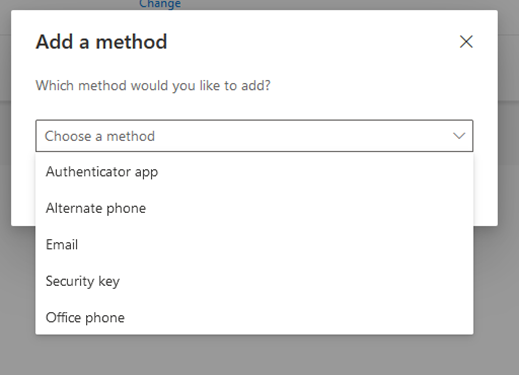
Select Add
Follow the prompts to enroll the backup device or phone number.
Available Options:
-
Authenticator App: Microsoft Authenticator can be installed on secondary phones or tablets and associated with your account for MFA
-
Alternate Phone: Can be an alternate phone number (Cellular, Landline or VoIP)
-
Email: Can be an alternate email address you have access to which you can verify yourself from
*Please note, alternate emails cannot be used for account login (e.g. MFA), it is only for password resets.
-
Security Key: A personally owned FiDO2 device key such as a Yubikey, Titan Security Key or Windows Hello
-
Office Phone: Useful if you have a phone number and direct extension
*Please consider any additional prompts your offices phone system may require to get to entering a user’s office extension